


 Degree Symbol PNG
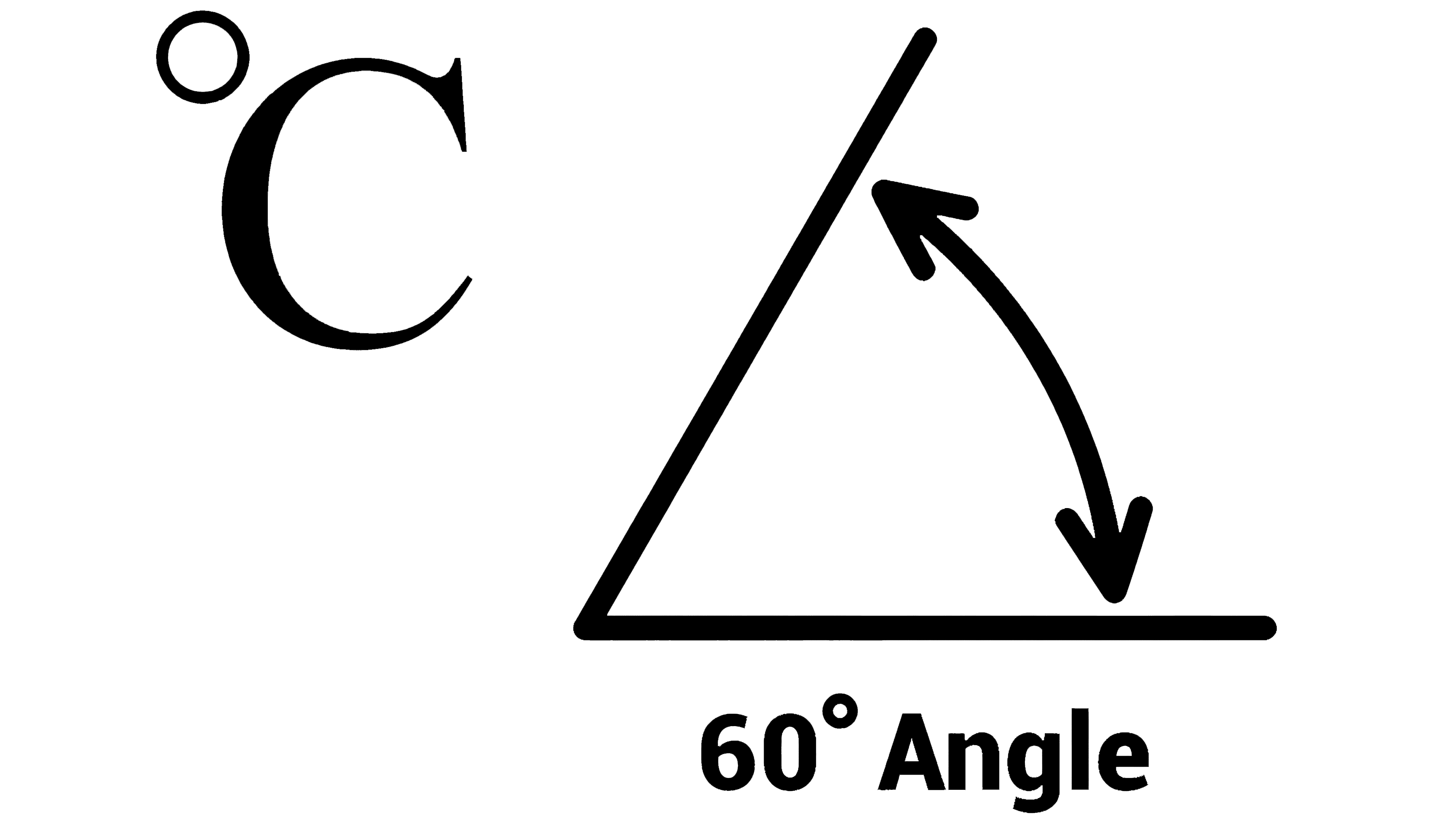
The degree symbol is a little circle (°) that we see after numbers when we talk about temperatures, like in weather, or when we show angles, like in math class. When discussing temperature, we use the symbols “C” for Celsius or “°F” for Fahrenheit, which are written immediately after the unit of measurement. So, if it’s 23 degrees Celsius, we write it like 23°C.

A degree in temperature helps us understand how warm or cold something is by comparing it to the freezing and boiling points of water. In Celsius, one degree is 1/100 of the difference between the freezing point and the boiling point of water.
Another way to measure temperature is in Kelvin, but we don’t use the degree symbol. Instead, we write a number and “K,” like 300K.

We also use degrees to describe locations on a map. This helps us find exactly where something is on Earth.
This degree symbol is so important that it was added to the Unicode standard in 1993. Unicode is like a vast library that enables computers to understand all the symbols we use in typing, allowing everyone worldwide to use the same symbols consistently.
Typing a Degree ° Symbol
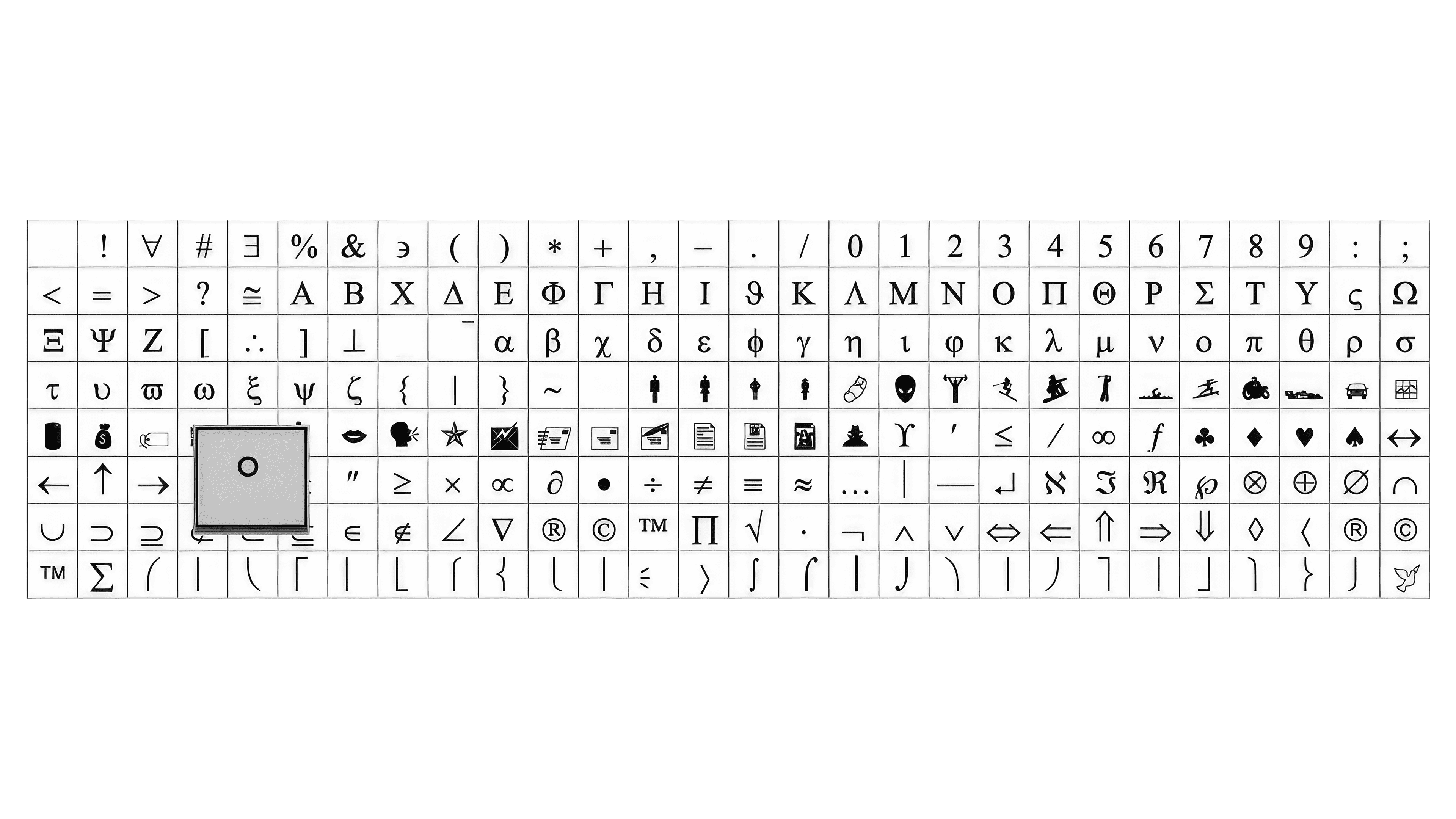
To type the little circle (°) we use to talk about degrees, like how hot or cold it is, or angles in math, you have to do a little extra work because our keyboards don’t have a special key. If you’re using Microsoft Word and you want to put this symbol in your writing, here’s what you do:
- Move your blinking cursor to where you want the degree symbol to go.
- Click on the “Insert” tab at the top of Word.
- Look for the “Symbol” button and click it. If you don’t see the degree symbol immediately, click “More Symbols.”
- A variety of symbols will appear. Find the degree symbol. It’s usually under the group named “Latin-1 Supplement.”
- Click on the degree symbol, then click the “Insert” button, and it’ll be inserted into your document right where your cursor is.
Table of Symbols
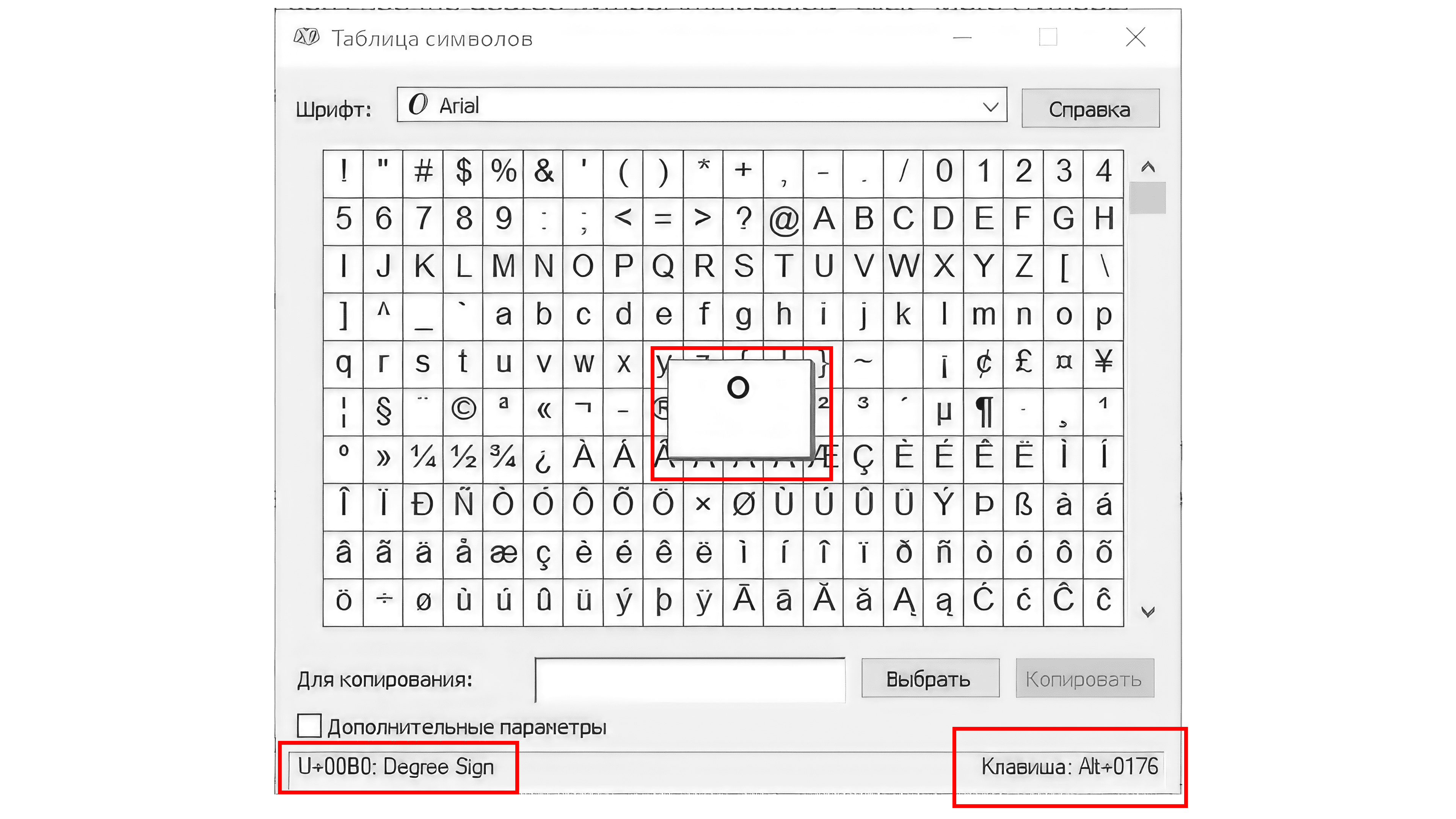
Did you know your computer has a secret box full of special symbols? It’s true! And it’s not just for WordPress; even Windows has it. Here’s how you can peek inside:
Open the Secret Box: Click the Start menu on your computer, like opening a treasure chest. Then, pretend you’re a detective and type “charmap.exe” in the search box. Hit the Enter key; life says, “Okay, let’s go!” Another way to open the search window on modern operating systems to enter the command “charmap.exe” is the Windows+R key combination.
Finding the Degree Symbol on Your Computer
Here’s how to find the little circle we use to talk about temperature or angles, like when we say it’s 75° outside:
- Open Character Map: On your computer, there’s a tool called Character Map. It’s like a treasure chest full of symbols.
- Look for the Degree Symbol: Once you’re in the Character Map, look around until you find the symbol that looks like a tiny circle (°).
- Copy It: Click on that tiny circle symbol to make it blue, click the “Select” button, and click “Copy” to grab it.
How to Put the Degree Symbol in Your Work

Once you’ve copied the degree symbol to your clipboard, here’s what you do next:
- Go to Your Document: Open up the document or place where you want to add the degree symbol.
- Paste the Symbol: Press “Ctrl+V” on your keyboard. This pastes the degree symbol right where your blinking cursor is.
Keyboard shortcuts
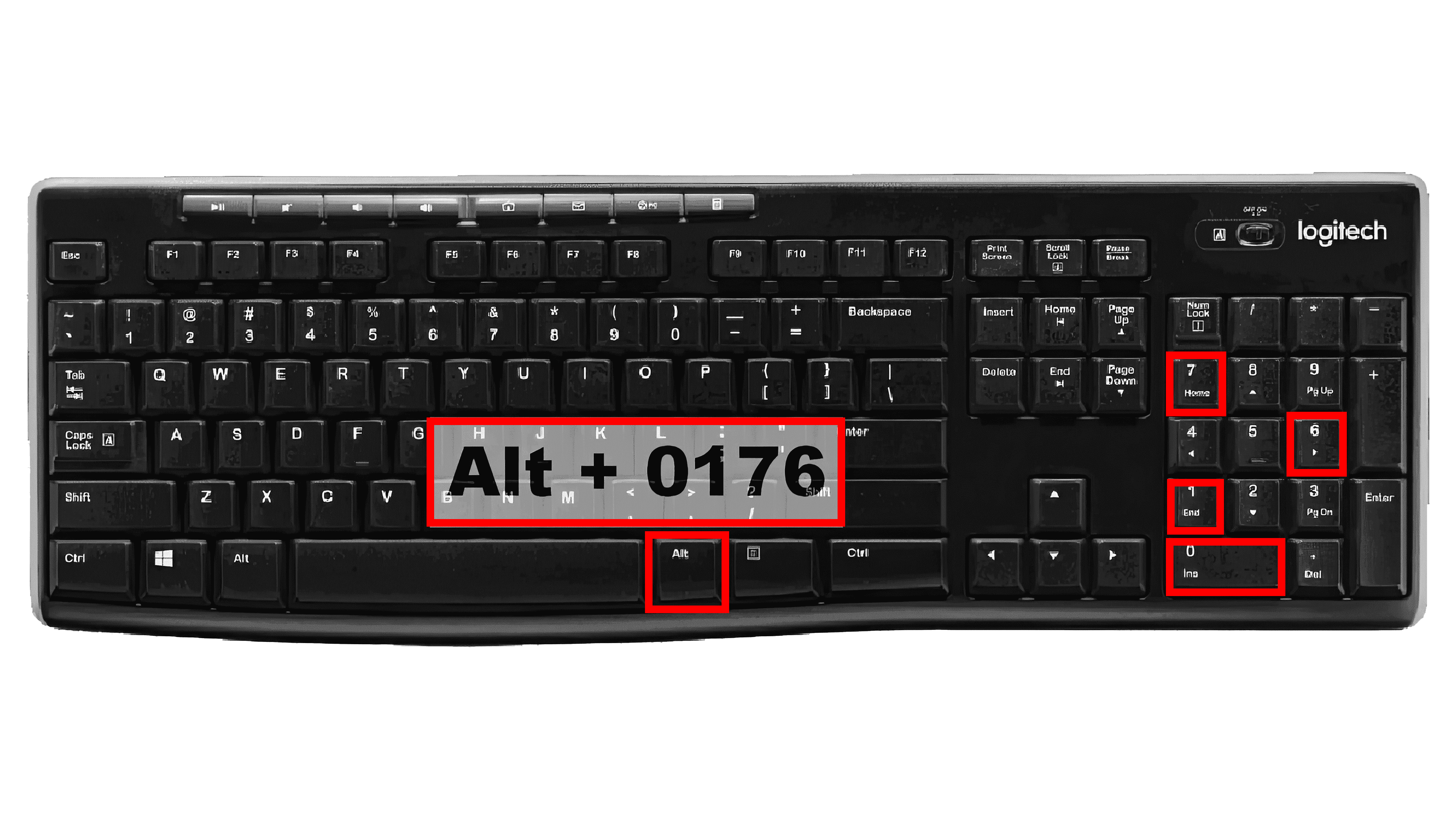
On a Windows Computer:
- Press and hold the “Alt” key.
- While holding it, type “0176” on the side number pad.
- Let go of the “Alt” key, and the degree symbol (°) appears!
On a Laptop Without a Number Pad:
- Press and hold the “Fn” key, then press the function keys (the ones at the top of your keyboard) that have numbers on them to type “0176”.
On an iPhone or iPad:
- Press and hold the zero key (0) until a small menu pops up.
- Slide your finger to the degree symbol (°) and let go to select it.